 Walid Karray
From the archive: first published in June 2013 on my old blog, Tux86’s Web Tech Blog. Versions, links and screenshots are from that time.
Hello and welcome to this tutorial, which is aimed mainly at new Safari extension developers. Its goal is to show you how to build your own Safari extension from A to Z. We have chosen an example extension that involves the various features you need to learn, and along the way you will discover how simple it is to create your own Safari extension.
The tutorial is divided into two parts:
- Part 1: Configuring the extension. You prepare the environment, enable Extension Builder, create a toolbar icon, and create and configure the popover.
- Part 2: Building the extension. You create the (start and end) injected scripts, work with the Global Page, use a jQuery event listener, build the extension’s user interface (the Popover), pass messages between scripts and build the extension package.
Introducing the extension
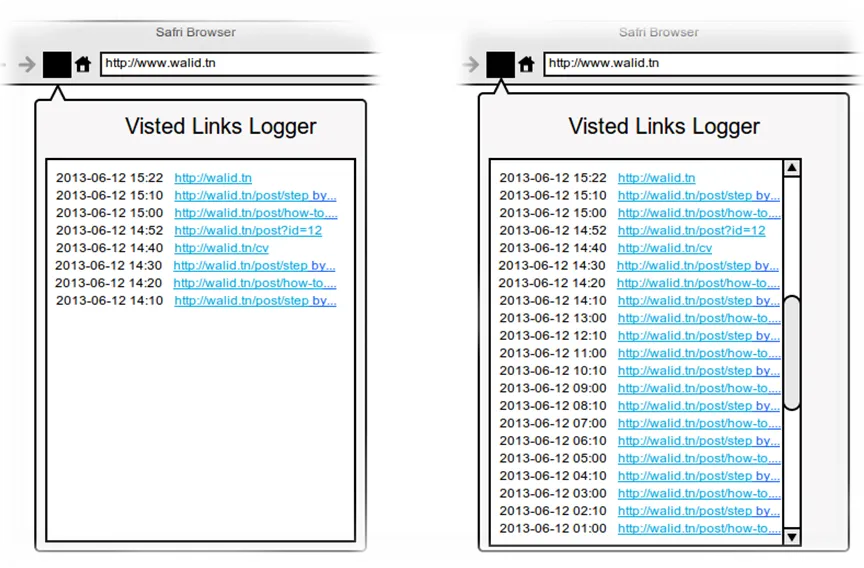
We have been asked to build a Safari extension that logs all the links you visit while browsing with Safari. All we need to log is the date on which the link was clicked and its URL. Here are the additional specifications:
- The interface containing the log should be a sidebar or a popup window that is shown by clicking a button in the toolbar.
- The information about each logged click (date and URL) should fit on a single row (line).
- The URL text should be clickable and underlined; when clicked, it opens the URL in a new tab or window.
- The top row should be the most recently clicked link.
- The log should be shown in a medium-sized frame (maximum size: 400x500 pixels).
- When the log goes past the bottom border of the frame, a vertical scroll bar must be shown.
- When a row goes past the right border of the frame, an excerpt of the URL must be shown, followed by (…).
The mock-up below explains pretty much everything.
Part 1: Configuring the extension
Getting started
This is everything we need to build our extension:
- An operating system: Mac OS or Windows. Linux? I’m a Linux user, and unfortunately there is no official version of Safari for Linux, so I used Ubuntu Linux for development and Windows in Oracle VirtualBox to test my extension in Safari.
- A recent version of the Safari browser, version 5 or higher (version 5.x.x recommended).
- Your favorite IDE, or simply a text editor (in this tutorial I used Sublime Text 2, which you can download from this link).
- A Safari Developer certificate, which is needed to use Extension Builder. Register by clicking this link, then request your certificate with the Safari Extension Certificate Utility and follow the instructions.
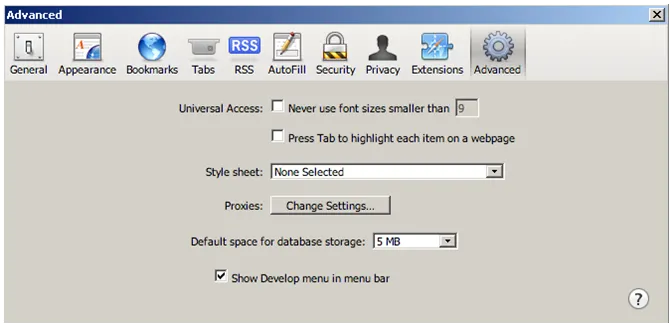
After installing Safari, the first thing to do is to enable the Develop menu in the menu bar, so that you can use Extension Builder.
Extension Builder is a powerful extension development tool that comes out of the box with Safari.
To enable the Develop menu, open the general settings menu, choose Preferences and click the Advanced tab (as shown below). Checking the “Show Develop menu in menu bar” box enables the Develop menu.
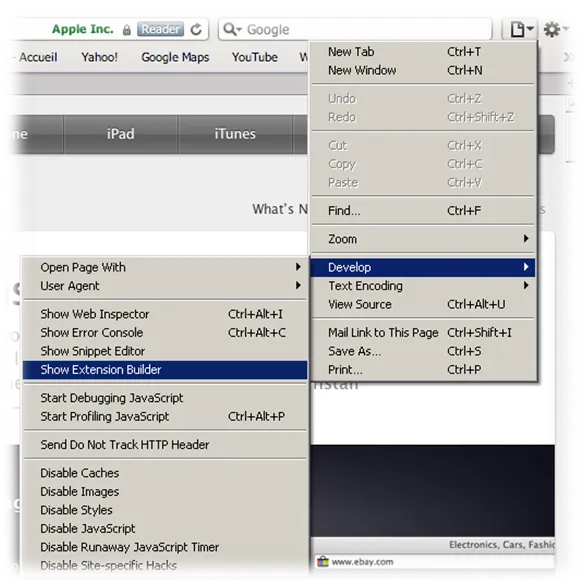
It’s now time to open Extension Builder: go to the Develop menu (see the picture below) and click “Show Extension Builder”.
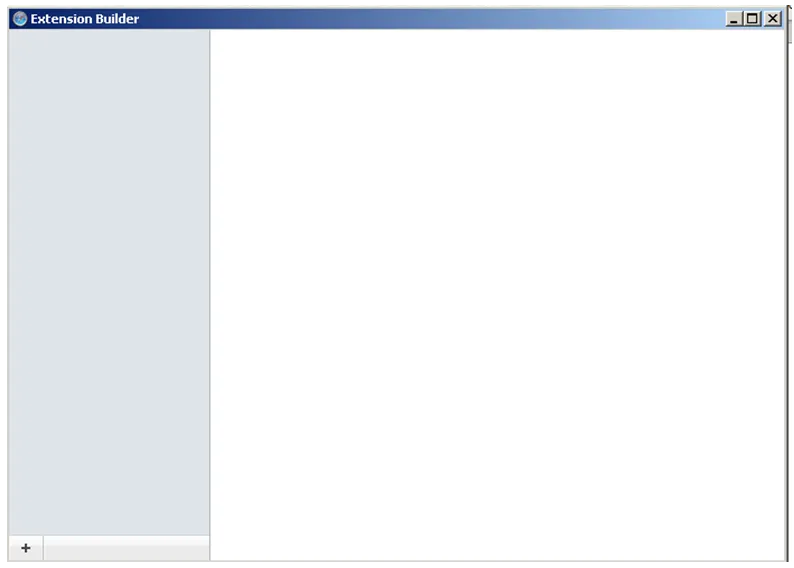
As shown in the picture below, when you start Extension Builder for the first time, there is no extension yet.
In the next section we will start configuring our extension.
Creating the extension
Make sure Extension Builder is open, then create a new extension by clicking the (add) button in the bottom-left corner of the Extension Builder window.
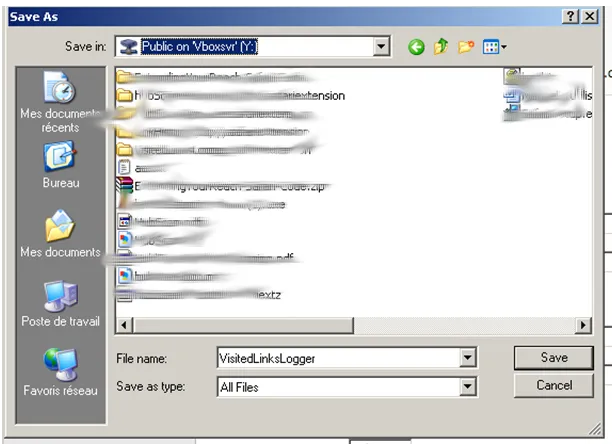
When the save dialog opens, type “VisitedLinksLogger” in the file name box, then click the Save button (see the picture below).
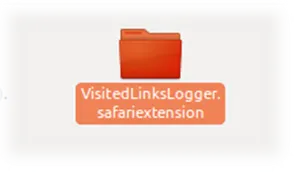
When you click Save, a new folder is created behind the scenes in the location you chose. This folder is the extension’s project root directory (shown below), and for now it contains only one file, “Info.plist”, where the project settings and metadata are stored.
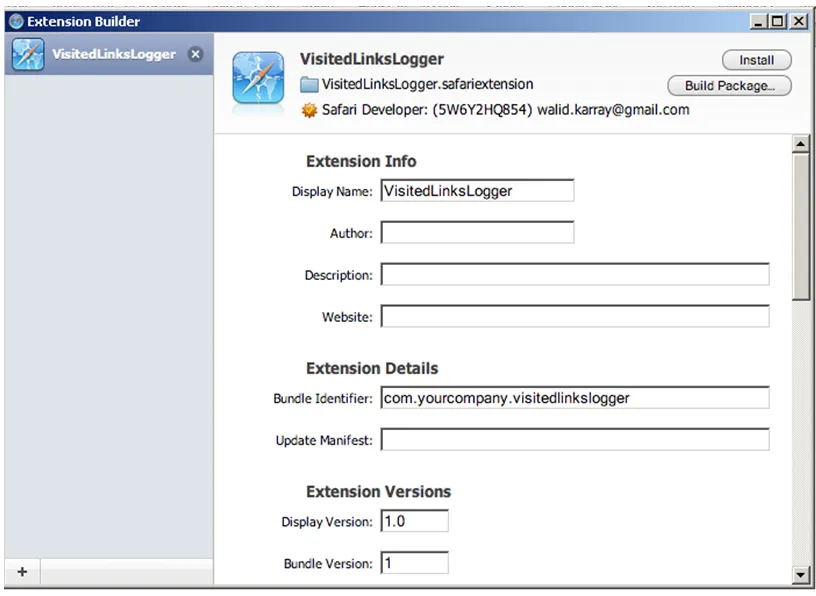
Extension configuration
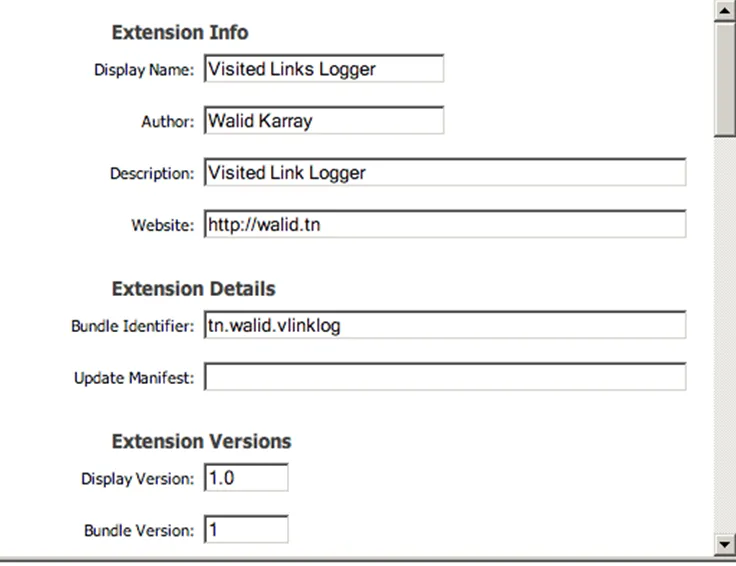
The first step is to provide information about our extension. Fill in the Extension Info section as shown in the next picture. Feel free to use your own information.
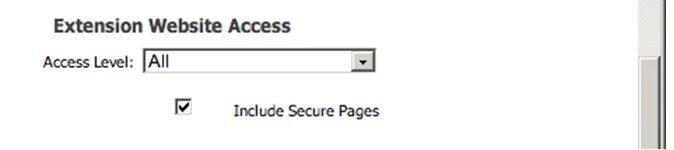
In the Extension Website Access section, set Access Level to All, then check “Include Secure Pages” so that every website is included.
Global Page
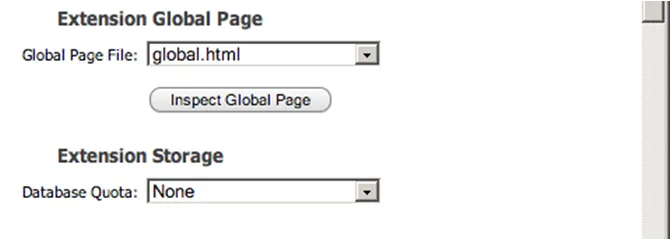
In this step we define the Global Page file. A Global Page contains code that is loaded once, when Safari launches or when your extension is enabled. This page is never displayed.
To define your Global Page, go to the extension root folder “VisitedLinksLogger.safariextension” and create a new empty file named “global.html”. Then go back to Extension Builder and, in the Extension Global Page section, select “global.html” from the drop-down list.
Toolbar button
As stated at the beginning of this tutorial, our extension must include a button with an icon in the toolbar. To create this toolbar button, start by getting an icon. It is highly recommended that the icon be 18x18 pixels.
Once you have the icon, place it in the root of the extension folder. Next, we configure the toolbar button in Extension Builder. To create a new toolbar button, click “New Toolbar Item” and fill in the information (label, image and identifier) as shown below, selecting your toolbar icon from the Image drop-down list.
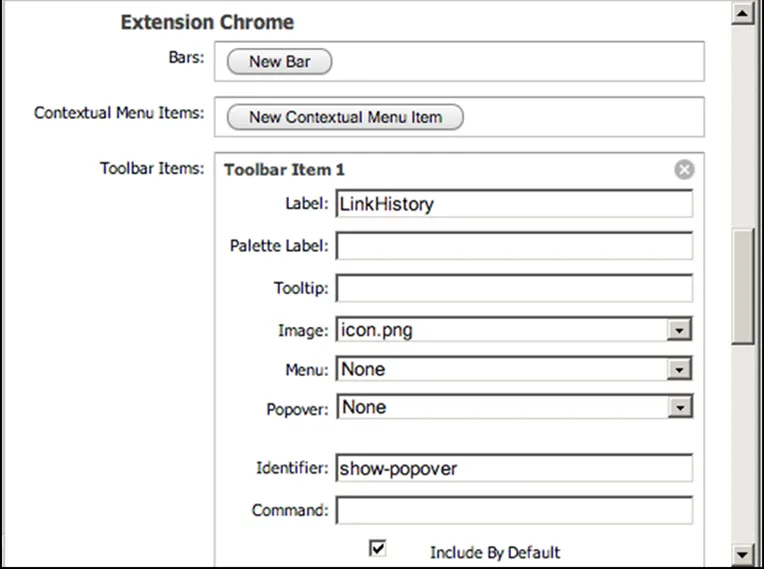
For now, nothing happens when you click the toolbar icon, because we haven’t specified an action for it yet.
The Popover
At the beginning of this tutorial we were asked to build a popup window that contains the log of visited links, and that is shown or hidden when we click the toolbar icon we just added.
The right choice to meet these specifications is a Popover: it is the extension’s user interface, where the log of visited links will be shown. Don’t worry about building the Popover interface; it only takes basic HTML and JS skills.
Like a regular web page, it needs a single HTML file in the extension root folder; name it “popover.html”.
Now let’s go back to Extension Builder once more to configure our Popover. Go to the Popovers section, click the New Popover button and enter the information as shown in the picture below.
Here is a description of each property:
- Identifier: the name of the Popover.
- File: the popover HTML file (the interface).
- Width and Height: the popover dimensions in pixels.
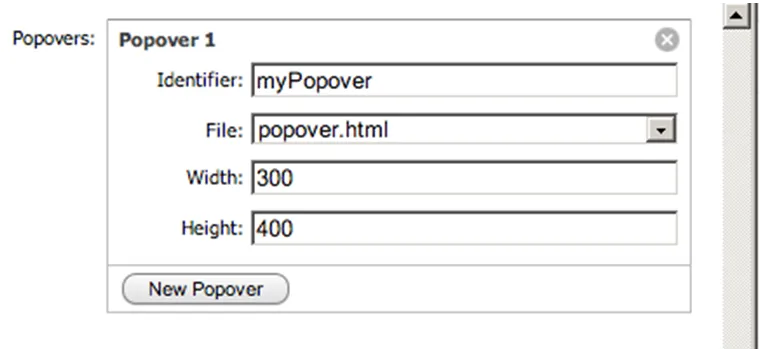
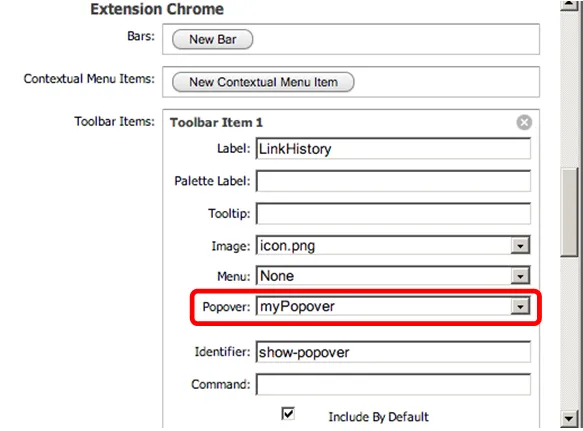
So far we have created a popover and a toolbar button, but we have not yet configured the button to show the Popover when clicked. To do that, go back to the Toolbar Item 1 section and select myPopover from the Popover drop-down list.
Injected Scripts
Our extension needs two kinds of scripts, a Start Script and an End Script. Unlike the global page and the Popover file we created above, injected scripts are loaded every time a page is loaded. Here is the difference between a Start Script and an End Script:
- Start Script: runs when the document has been created but before the web page has been parsed.
- End Script: runs when the DOM is fully loaded.
Start Script
To make JavaScript development easier, we will use the jQuery library. In most cases, jQuery functions are called once the DOM is fully loaded. Our extension needs to call a jQuery function inside the end script. Since jQuery has to be loaded first, it must be configured as a Start Script.
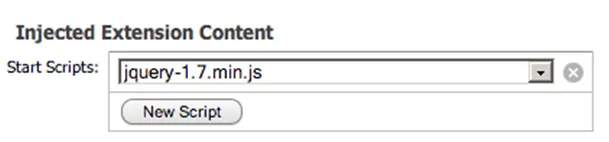
Download jQuery 1.7 or higher, or get it directly from this link. Once the download is complete, put the library (with its .js extension) in our extension’s root directory. Then go back to Safari Extension Builder, click the “New Script” button in the Start Scripts section and select the jQuery library from the drop-down list.
End Script
Create a new empty file “listener.js” in the extension root directory, then repeat the same steps as for the Start Script. Check that you have selected “listener.js” in the End Scripts drop-down list.

The extension configuration is done. The last thing to do is to install your extension by clicking the “Install” button in the top-right corner of Extension Builder.

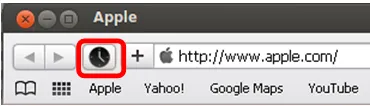
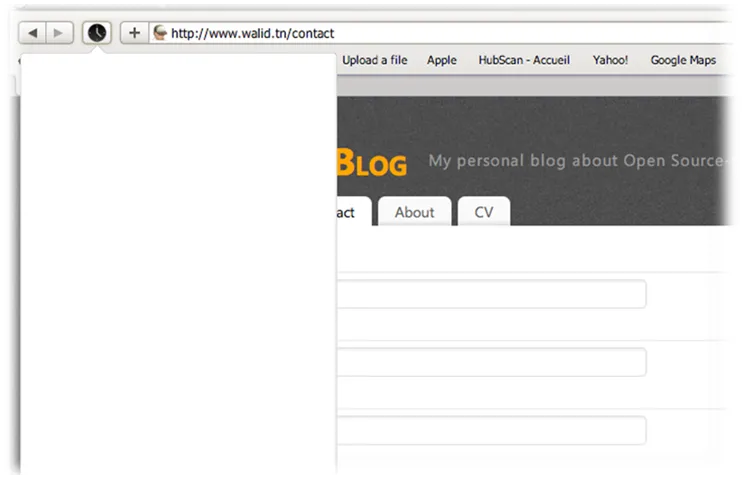
Once you have clicked Install, go to the main Safari window: next to the address bar you should see the extension’s button, and when you click it, a blank popover is displayed.
We have reached the end of the first part of the tutorial. In this part we learned how to configure a Safari extension with Extension Builder, a powerful extension development tool that comes out of the box with the Safari browser.
The second part of the tutorial focuses on the business logic of our extension. We will dive into Injected Scripts, the Global Page, passing messages between scripts and building the GUI. Please continue with the second part here.